Set up a room panel
Put a screen outside a meeting room so anyone walking past can see whether it is free, and book it on the spot.
Last updated 4 August 2026
Setting one up for the first time? Getting started with Rooms walks the whole thing, including locking the iPad to the app. This page is what a panel is and how it behaves once it is up.
A panel is a screen mounted outside a room. It shows the room's name, whether it is free or in use, what is on today, and lets somebody book it without opening a laptop.
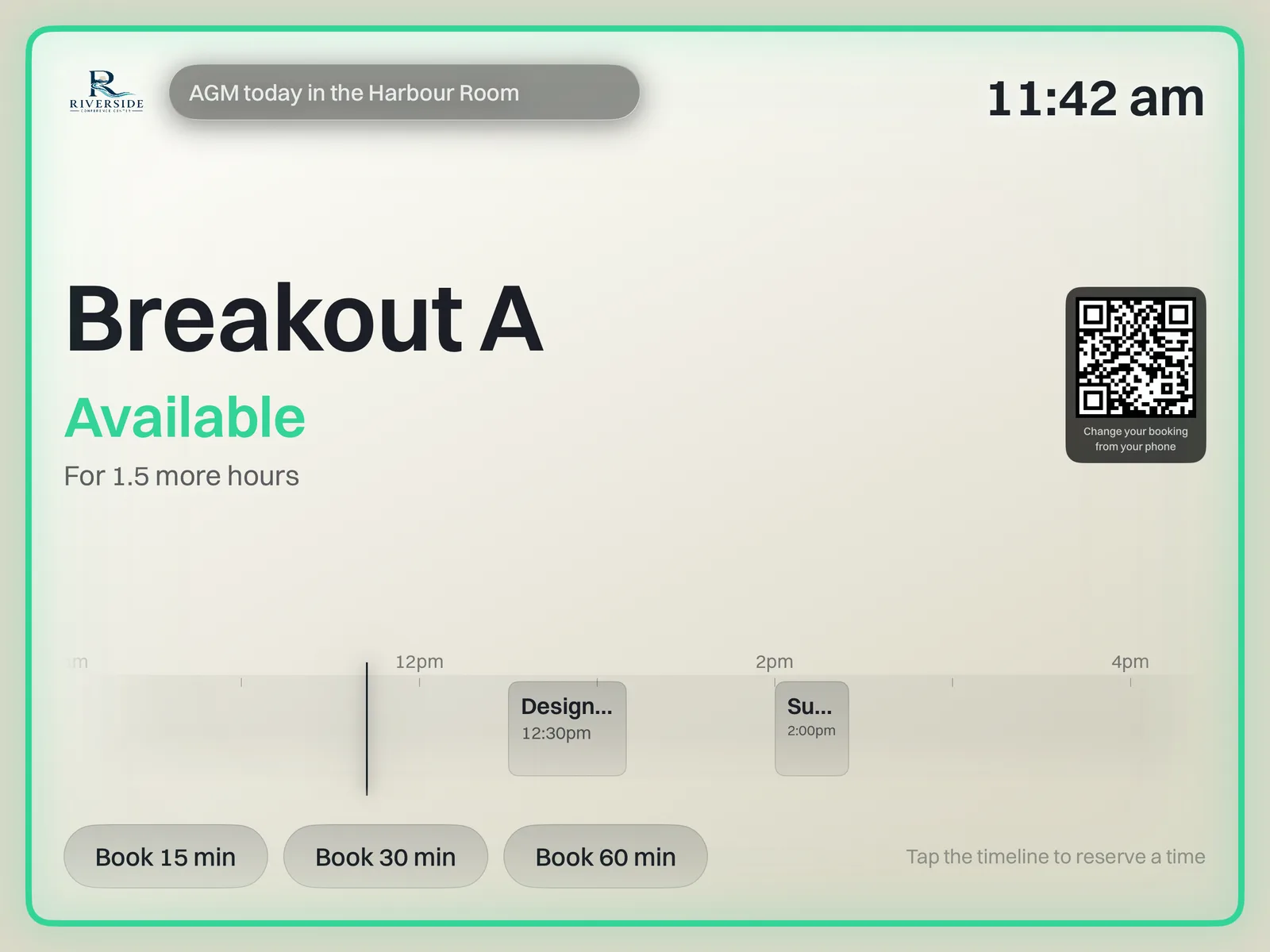
You can run a panel two ways. Both show the same thing and both book against the same diary.
On an iPad
Install Billboard Rooms from the App Store on the iPad you want to mount. Open it and it shows a six character code.
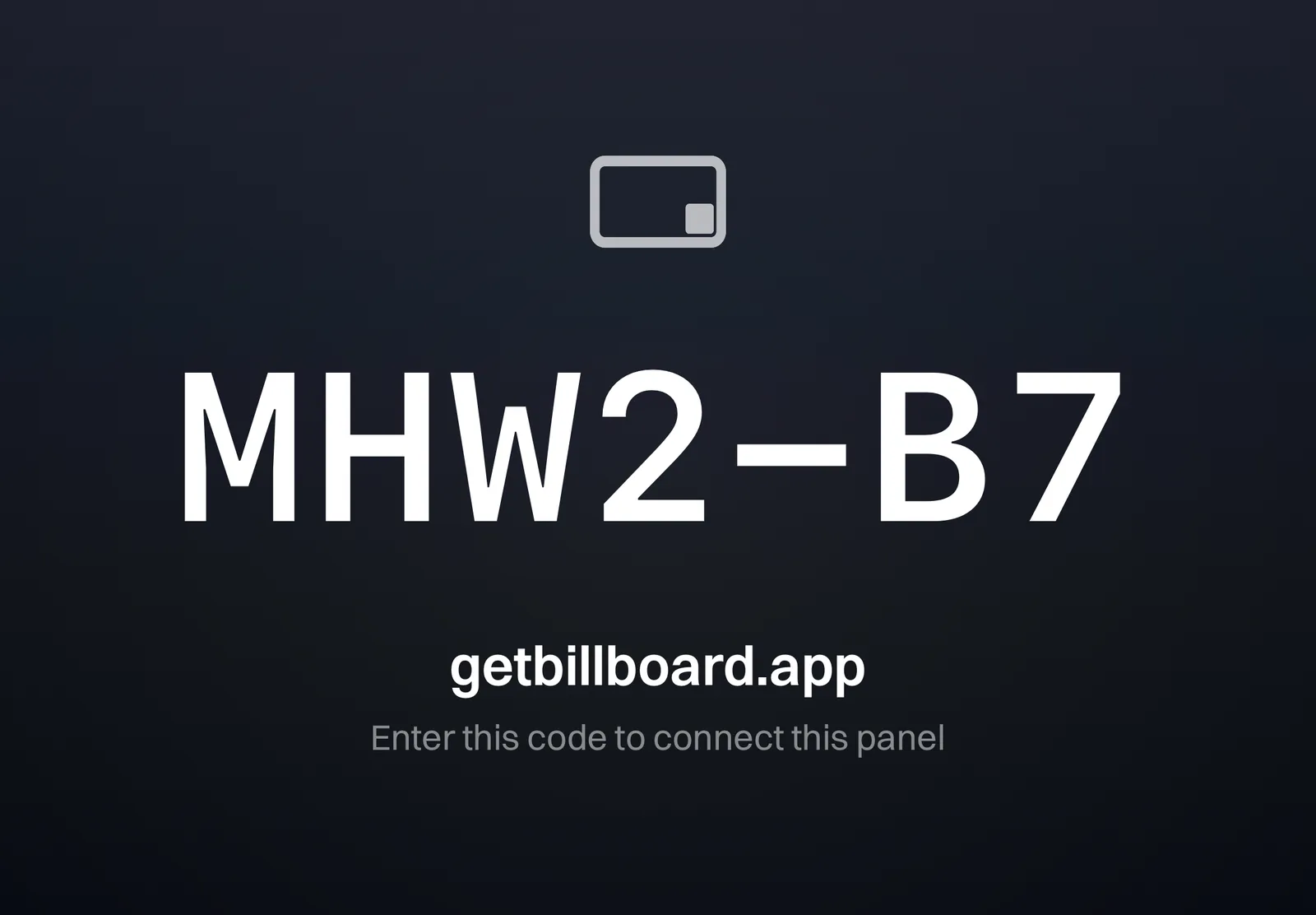
The code goes the other way to what you might expect. You do not type a room code into the iPad. The iPad shows a code and you claim it from the dashboard, so nothing has to be typed on a screen that is already on a wall.
- Go to Rooms in the dashboard.
- Open the room this panel is for, or add it, and go to Connect.
- Enter the code showing on the iPad.
The panel connects within a few seconds and starts showing the room.
An iPad is the better choice for a permanent installation. It handles being mounted flat against a wall, it wakes properly, and it is designed to sit on one screen for months.
In a browser
Open player.getbillboard.app/r/ followed by the room code on any device with a
browser. An old tablet, a spare laptop, a small screen on a stand.
This is the quicker way to try Rooms before buying hardware, and it is the right answer for a room you only need covered for a while.
Finding the room's own code
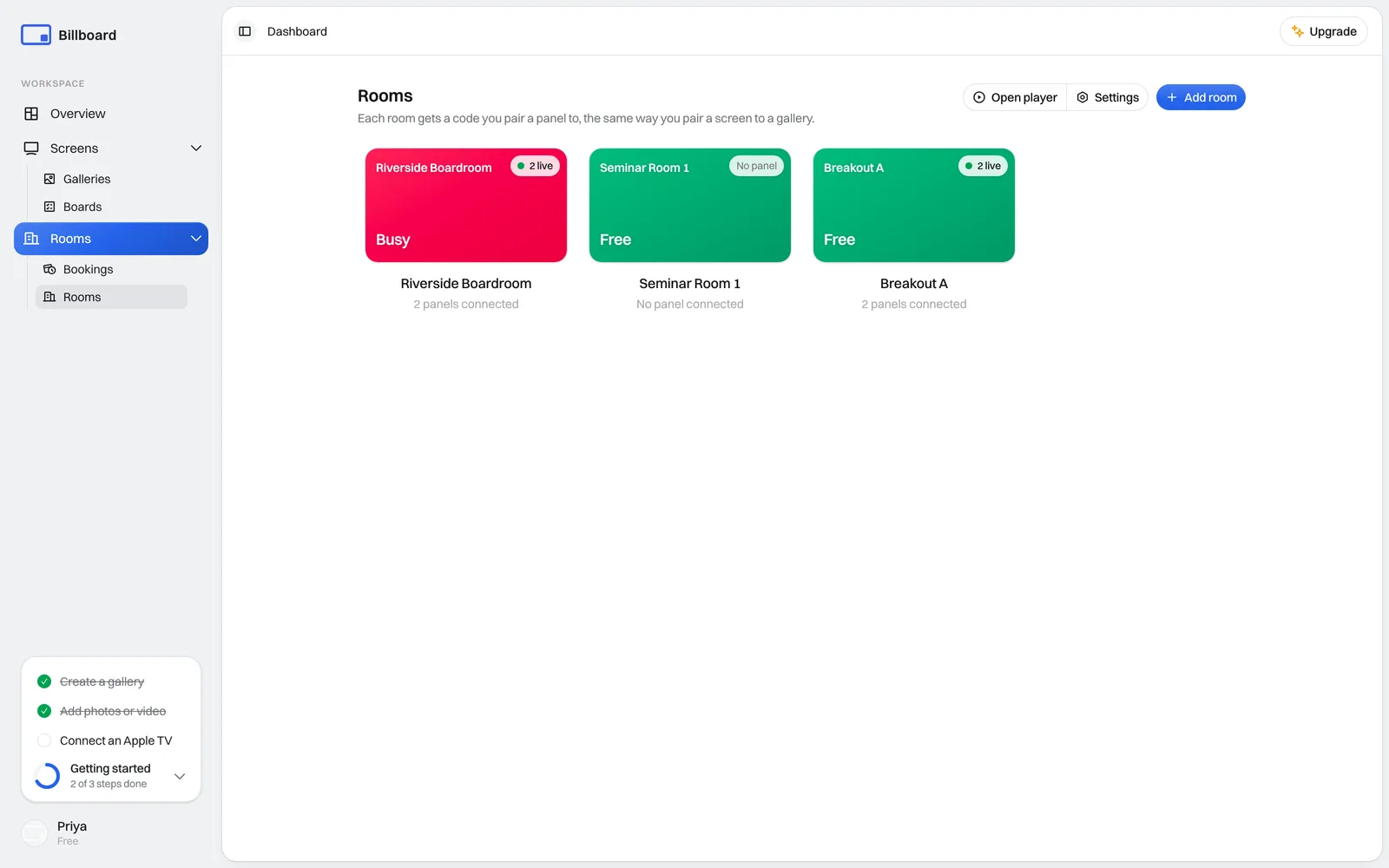
The room code is the eight character one on the room's card in the dashboard. It is not case-sensitive, and it is what goes in the browser URL above. The iPad does not use it, since the iPad shows its own code instead.
What the panel does on its own
Once it is up, leave it alone. It re-reads the room every few seconds, so a booking made at a desk appears on the wall without anybody touching the panel.
If the network drops, the panel keeps showing the last thing it knew rather than going blank. A screen on a wall with nobody standing at it should never show an error, so it degrades quietly and catches up when the network returns.
Quiet mode overnight
Outside working hours a panel goes dark: black background, no border, no QR, and just the room name, whether it is free, and the clock in the corner. It is there to save the display and the power bill in a corridor nobody is walking down at two in the morning, while still answering the only question anybody has at that hour.
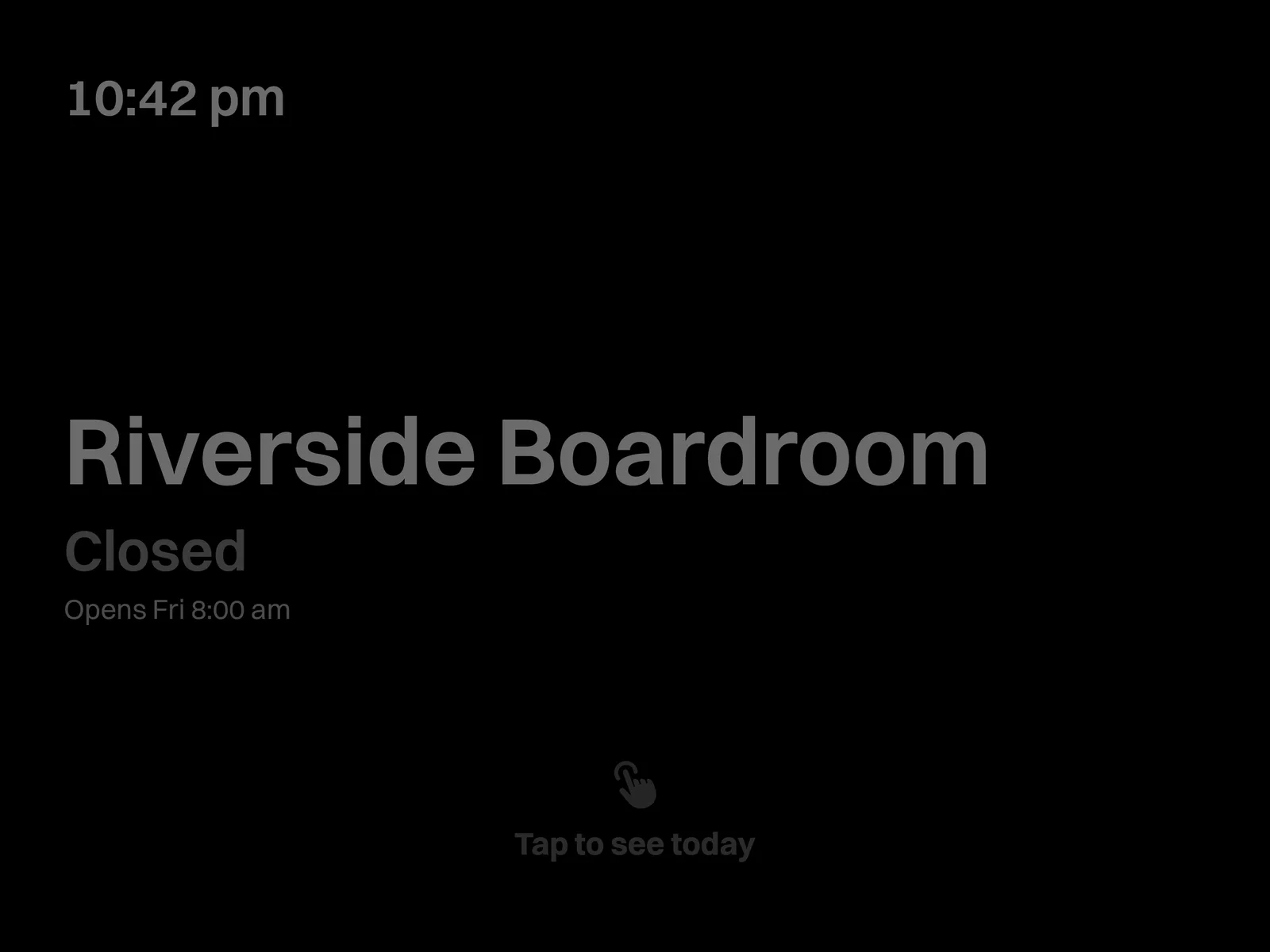
Touching it wakes it fully for a couple of minutes, then it settles back. The "Tap to see today" line is there so nobody decides the panel is broken and goes looking for a plug.
Set the hours under Rooms → Room settings → Panel → Every panel → Quiet mode. It reaches every panel on the account, including the ones already on a wall, and each panel applies it in its own room's timezone.
The glowing border and the booking QR
Two more things on that same Every panel group, both on by default:
- Glowing border. The edge breathes slowly in the room's colour, green when it is free and red when it is not. It is what makes a panel readable from the far end of a corridor, where the words are too small to make out but the colour is not.
- Booking QR. A code beside the room name that opens that room's booking on a phone. It changes a booking rather than making one. See Book a room, and change it later.
When the room is closed
Outside opening hours the panel says the room is closed and when it opens again, and offers nothing to tap. A booking outside those hours is refused wherever it comes from, so there is nothing the panel could usefully offer.
It does not point at another room. The public booking page only knows the room whose code it was given, and listing a building's other rooms from one code read off a wall is not something we do. See Opening hours and limits.
Panels do not count towards your screen limit
A room panel is not a screen in the plan sense. Hang forty of them and your screen allowance is untouched. What counts is rooms, not the panels showing them.
How many rooms you can have depends on how you bought Rooms. Added to a paid plan it follows that plan's screen count, so twenty on Starter and fifty on Growth. Bought on its own there is no limit, because there is no plan to read a number from.