Book a room, and change it later
How booking from the panel works, what the six digit code is for, and how to extend or cancel a meeting from the door.
Last updated 4 August 2026
Booking from the panel
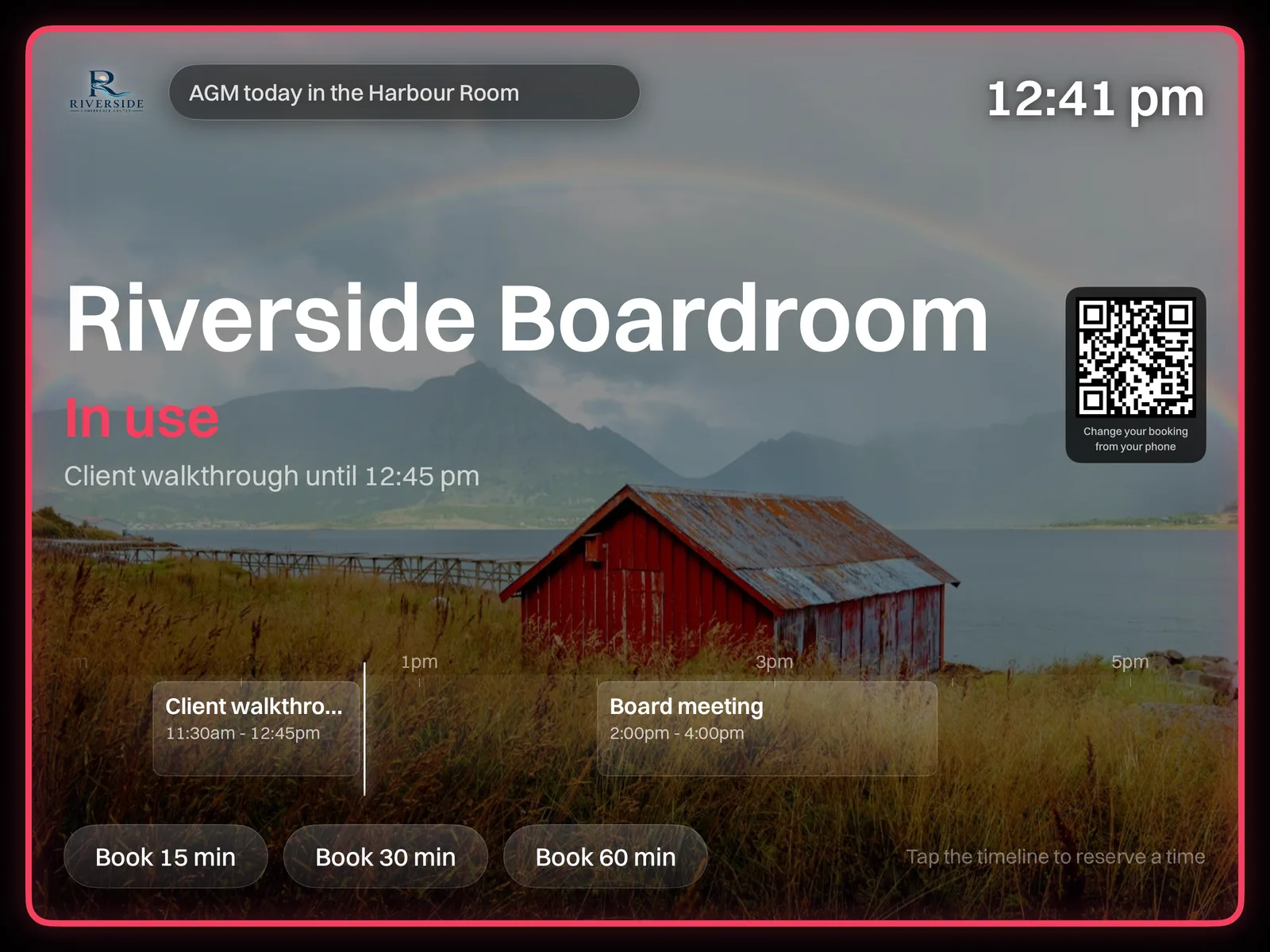
Tap an empty stretch of the timeline. A row appears along the bottom asking for three things: when it starts, how long, and an email address.
The email is optional but worth giving. See below.
Tap Confirm and the room is yours.
Write down the six digit code
The moment a booking is made, the panel shows a six digit code, grouped as three and three so it is easy to carry back to a desk.
That code is the only proof the room is yours. It is shown once. It is not stored on the panel, the panel cannot look it up again, and nobody can read it off the screen later.
If you gave an email address, the code is also sent to you along with a link to manage the booking. That email is the copy that survives, and it is the reason the address is worth giving.
If you gave no address and did not write the code down, the booking can still be cancelled from the dashboard by whoever administers the account, but not from the panel.
Why a code and not just your name
A panel hangs in a corridor. Anybody walking past can touch it. If tapping a booking were enough to end it, any passer-by could clear your meeting off the wall thirty seconds before it started.
Being the panel that made the booking is not proof either, because that is the same panel for everybody in the building. So the code is the proof, and it is the only one.
Changing a booking
Tap the booking on the timeline. A sheet opens showing what it is, when it runs, and who booked it.
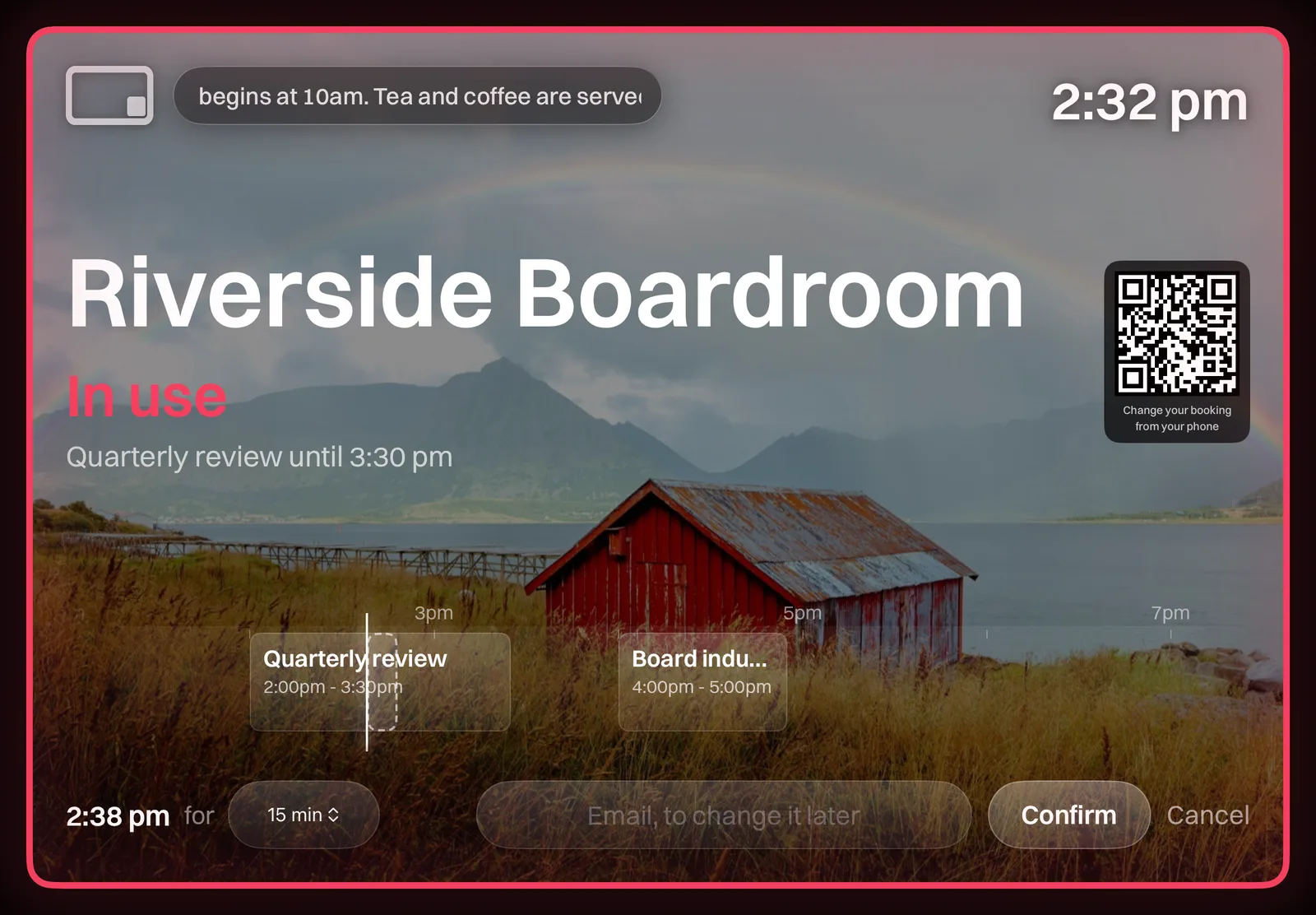
Enter the six digit code and tap Check code. Once it is accepted you can:
- rename the booking, so the wall says "Year 7 parents" rather than "Busy"
- extend it, if the room is still free afterwards
- cancel it, which frees the room from that moment
Nothing is offered until the code is accepted, so a code from a different meeting cannot reach a Cancel button.
From your phone, with the QR code
If the account has the booking QR turned on, there is a code beside the room name. Scanning it opens that room's booking on a phone, which is the easier way to change something you booked yesterday, or to sort out a meeting while walking to it.
It asks for the same six digits the panel does, and it can do the same three things: rename, extend, cancel.
It cannot make a new booking. A page anybody can reach with a code read off a wall is not a page that should be able to fill a building's diary, so a new booking is made either at the panel or by somebody signed in to the dashboard. The label under the code says "Change your booking" for that reason.
Turn it on under Rooms → Room settings → Panel → Every panel → Booking QR.
Checking in, and rooms given back
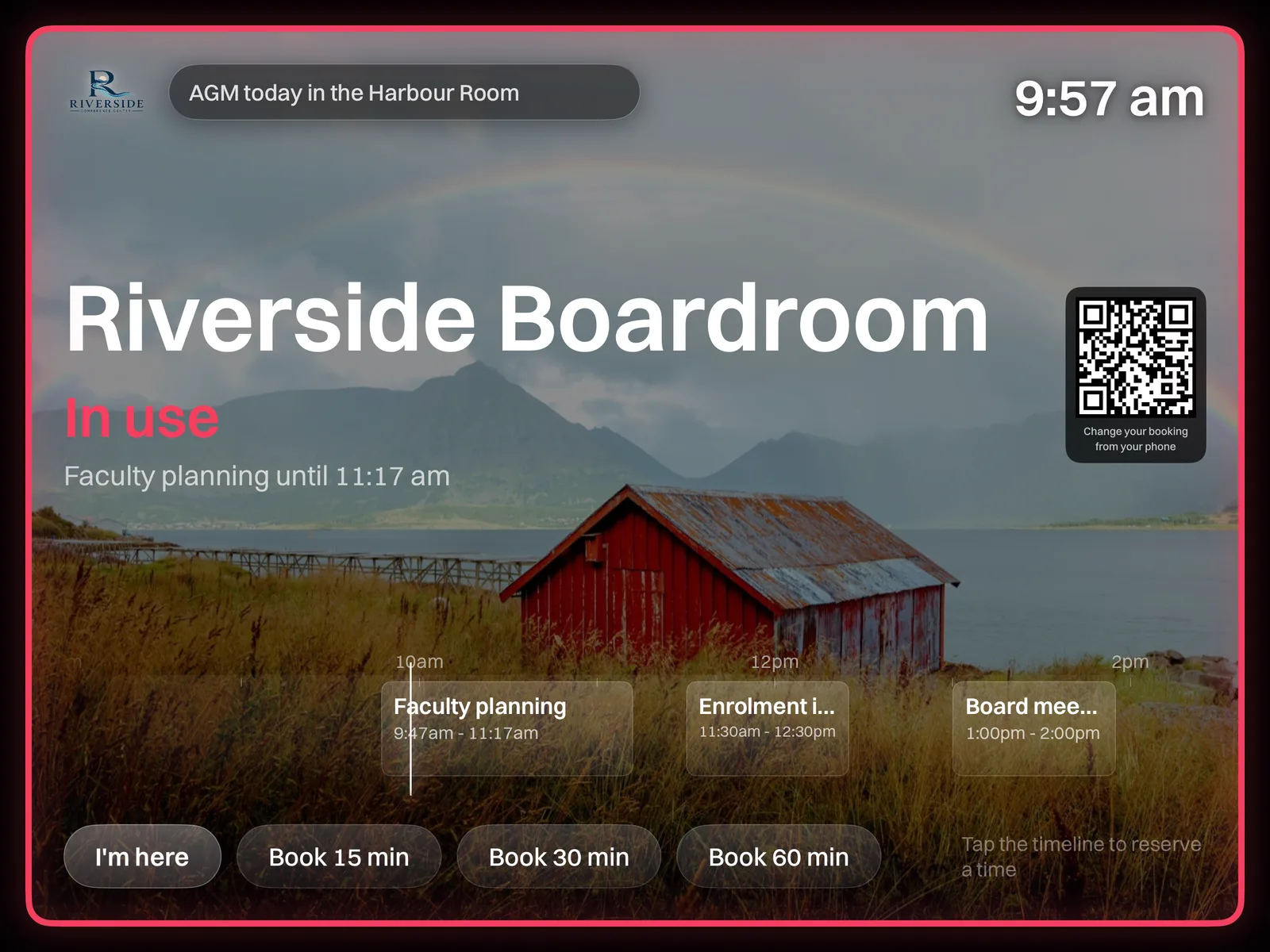
A room can be set to ask people to check in. When it is, an I'm here button appears on the panel about ten minutes before the meeting starts and stays for as long as it runs, so somebody who arrives early is not left prodding a screen that offers them nothing. Anybody can press it. It is not a lock, it is a signal that somebody turned up.
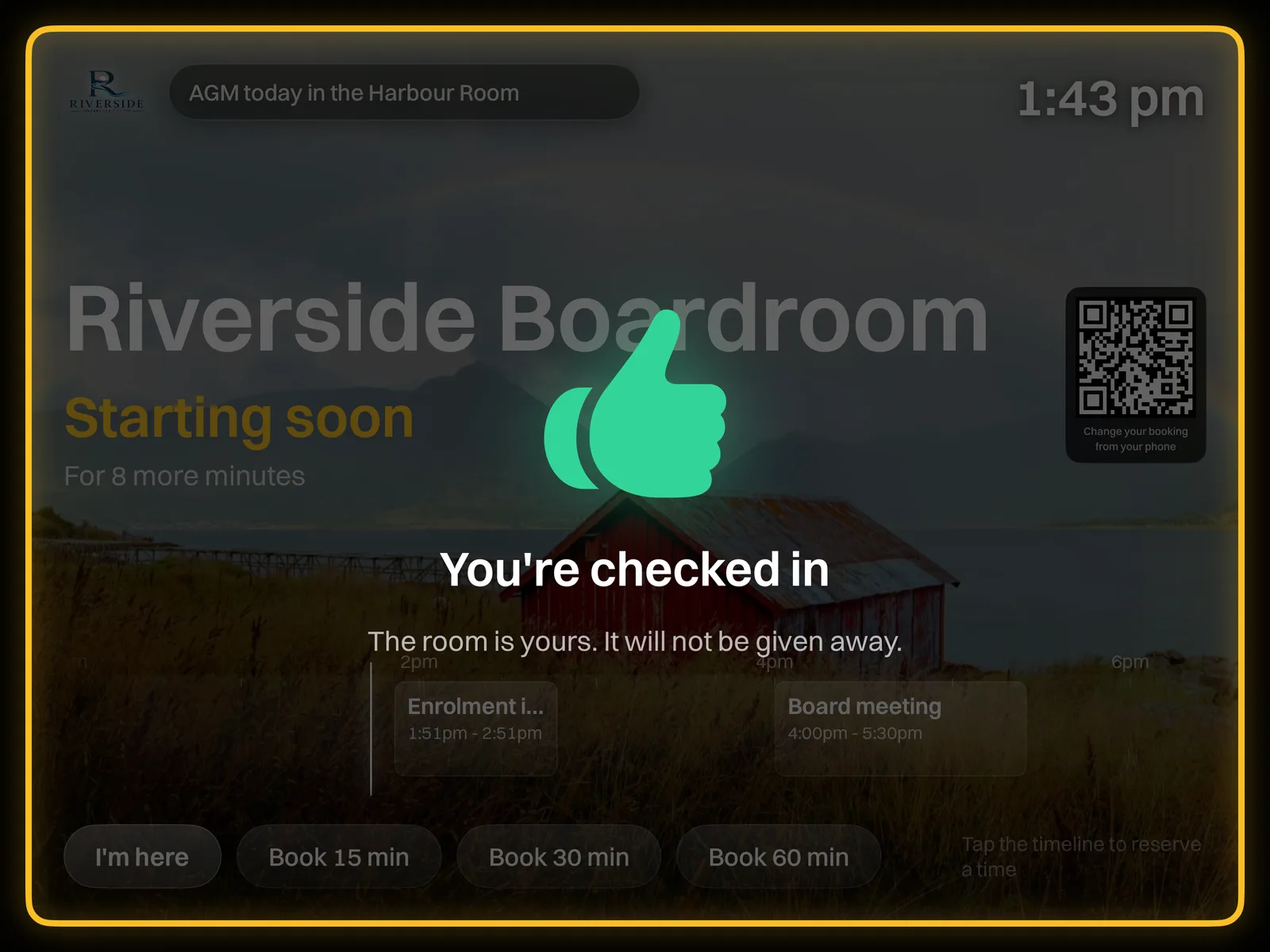
Press it and the panel says so, unmistakably, because pressing a screen in a corridor in front of whoever you are meeting deserves a clear answer.
If nobody checks in within the grace period, the room is given back and the panel shows it as free again. The meeting disappears from the wall and the room can be booked by whoever is standing there.
Both settings live under Rooms → the room → Booking: Ask people to check in, and Give the room back after, which defaults to ten minutes. Leave check-in off and nothing is ever released automatically.
Bookings that came from a calendar
If a booking arrived from a connected Outlook or Google calendar, the panel says so and offers nothing. There is no code on it and nothing the panel could prove, so it is changed wherever it was made.
Five wrong codes locks it
Five incorrect attempts locks that booking for fifteen minutes. This is deliberate: six digits is short enough to guess at, given a quiet corridor and some patience.
If you have locked yourself out of your own meeting, wait it out or ask an administrator to cancel it from the dashboard.